Script to Video AI
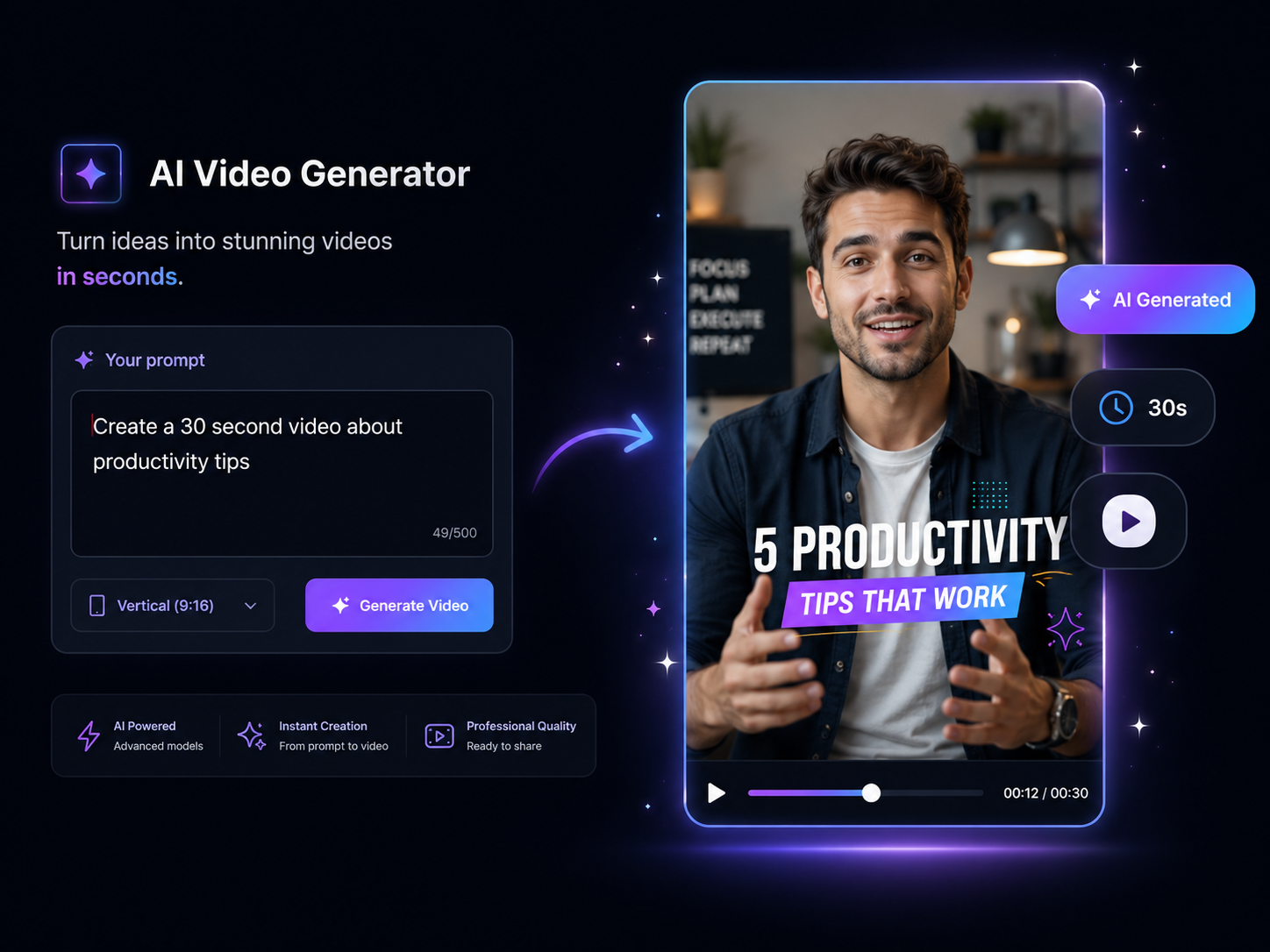
You've already done the hard part — the script is written. Now you're comparing AI tools to turn it into a video, and the question that matters is fidelity: does the engine follow your words, or flatten them into generic stock-footage soup? Eliro maps a scene to every line of your script, narrates your exact wording, and shows you the line-to-scene mapping so you can verify it before exporting.
- Your Wording Stays Untouched
- One Scene Per Script Line
- Inspect the Line-to-Scene Mapping
What to Look For in a Script-to-Video AI
These are the things that separate a real script-to-video engine from a slideshow maker with a text box.
Line-Level Scene Fidelity
Eliro assigns visuals per line, not per video. When your script moves from "the problem" to "the fix," the footage moves with it — the test most script-to-video tools fail.
Reads Your Script, Not a Rewrite
Some AI tools quietly paraphrase your writing to fit their templates. Eliro narrates your exact words with natural pacing and emphasis — the script you approved is the script viewers hear.

Visuals Sourced Per Segment
For each line, the AI chooses between stock footage, generated imagery, and animated graphics based on what the line describes. Abstract concepts get graphics; concrete ones get footage.
Captions Locked to Your Words
Word-level caption timing follows your script and the voiceover exactly, so sound-off viewers read precisely what sound-on viewers hear.
One Script, Every Aspect Ratio
The same script renders as 9:16 for Reels and TikTok, 16:9 for YouTube, or 1:1 for feed posts — with scenes recomposed for each frame, not just cropped.
Scene-by-Scene Override
Disagree with a visual choice on line 14? Swap just that scene in the editor. The AI's output is a starting point you can correct surgically, not a take-it-or-leave-it render.
What Happens After You Paste Your Script

Paste the Script You Wrote
A YouTube narration, an explainer draft, numbered beats — any text format. Eliro parses the structure into scenes without changing a word.
Review the Scene Mapping
Each line gets matched visuals, voiceover, captions, and music. You can see exactly which scene covers which sentence before anything renders.

Correct, Then Export
Swap any scene the AI got wrong, adjust pacing, then export in the formats you need or publish directly to your platforms.
How to Evaluate a Script-to-Video AI
Run Your Real Script Through It
Demo reels are cut from cherry-picked scripts. The honest test is pasting your own — the one with the awkward transition in paragraph three and the technical term the AI has to get right. Eliro parses intros, pivots, and conclusions from your actual structure, so the narrative arc survives the conversion.
Check How the Voice Takes Direction
A script-to-video AI is only as good as its delivery. Eliro reads tone from your writing — urgent copy gets urgent narration, a calm explainer gets measured delivery — and accepts explicit direction too: mark pauses, emphasis, and pace changes right in the script.
After the Script Becomes a Video
The pieces your generated video might still need, in the same workspace — no exporting between tools.

AI B-Roll Generation
Generate extra cutaway footage for any line where the matched scene needs reinforcement.

Background Music
Lay your own track under the narration with levels balanced against the voiceover.

Auto Transitions
Smooth the cuts between script sections so scene changes track your structure cleanly.

AI Video Editor
Open the render in a full editor when a scene-level swap isn't enough and you want frame control.

Publish & Schedule
Push the finished video to YouTube, TikTok, and Instagram on a schedule, straight from the project.
Learn more about what you can do
Related Pages
Explainer Video Maker — From Brief to Video, No Agency | Eliro
Make an explainer video from a written brief. AI handles script, scenes, and voiceover — so your product story ships this week, not next quarter.
AlternativeInVideo Alternative | Eliro vs InVideo
Compare Eliro and InVideo. Eliro generates complete viral videos from a single prompt with AI.
Use CaseAI Video for Content Creators: Post Daily | Eliro
Posting daily on YouTube, TikTok, and Instagram burns creators out. Eliro turns one idea into a finished video for every platform. Start free.
GuideHow to Make an Explainer Video with AI — Full Guide | Eliro
How to make an explainer video with AI: distill your product into one clear problem, script 90 seconds that stay on point, and embed it where buyers decide.